
What’s in this article
- What Runway Aleph 2.0 is — How one edit can change your entire video.
- The Style Lock Prompt — A copy-pasteable prompt for creating consistent video shots.
- The 5-Minute Video Fix — A step-by-step workflow for website B-roll.
- What this changes for agencies — How this tool changes your scope, pricing, and speed.
- FAQ — How Aleph 2.0 works, quality limits, and pricing.
🚀 Plug this into Claude Code or Claude Desktop
This spec contains the Style Lock Prompt for generating consistent video shots, a 4-step checklist for the editing workflow, and sample prompts for common style changes like color grading and lighting.
Want to turn this into a repeatable service for your agency? We build those workflows in the Talk-to-Build community.
This post gives you a five-minute workflow to fix the color grade, style, and mood of an entire landing page video by editing a single frame. No more shot-by-shot drudgery in Premiere. You’ll get a copy-pasteable prompt to generate visually consistent shots and the exact steps to apply global changes instantly.
This is now possible because Runway just shipped Aleph 2.0 inside their new Edit Studio. The update, announced on their official blog, turns what used to be a half-day of tedious editing into a coffee break.
What is Runway Aleph 2.0?
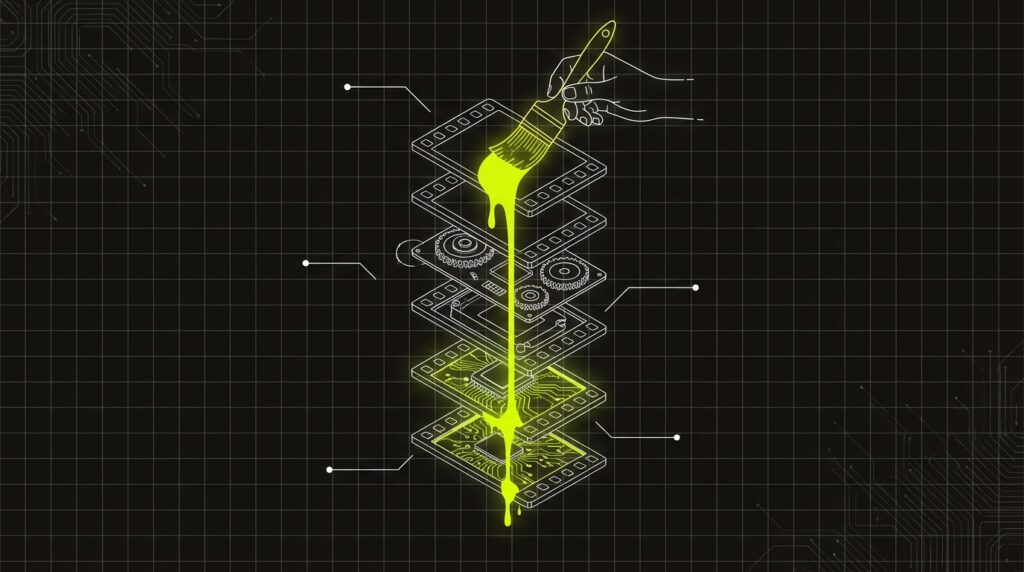
Runway Aleph 2.0 is a generative AI model that propagates edits made to a single video frame across an entire multi-shot sequence. It analyzes a stylistic change—such as color grading, lighting, or texture—and applies it consistently to all other shots in the timeline. This function allows for rapid, global visual adjustments without needing to manually edit each clip, streamlining the post-production process.
The Style Lock Prompt you can copy right now
The key to using Aleph 2.0 effectively is starting with a visually consistent set of clips. This “Style Lock” prompt structure tells Runway to generate multiple shots that already share the same aesthetic DNA. You feed this into Runway’s text-to-video generator for each shot you need, ensuring they feel like they were filmed on the same day with the same camera.
A 3-shot sequence for a luxury skincare brand website hero.

## Master Style Guide (apply to all shots)
- **Visuals:** Cinematic, 8K, photorealistic, shot on an Arri Alexa with a 50mm prime lens.
- **Lighting:** Soft morning light, creating gentle highlights and shadows.
- **Color:** Muted pastel color palette (rose, cream, soft gold).
- **Mood:** Calm, serene, and elegant.

## Shot List
- **Shot 1:** Extreme close-up of a product bottle on a white marble surface, condensation beading on the glass.
- **Shot 2:** Slow-motion shot of a clear, viscous liquid splashing in a gentle arc against a plain background.
- **Shot 3:** A model with flawless skin, gently touching her face, smiling softly.
Use this structure to generate your clips first. Then, when you use Aleph 2.0 to change the color grade on one frame, the model has a strong, consistent baseline to work from, giving you much better results.
BEFORE: Manual, Shot-by-Shot Editing

[Clip 1] --> Edit --> [Clip 1 v2]
[Clip 2] --> Edit --> [Clip 2 v2] --> Manually Match Styles --> Final Video
[Clip 3] --> Edit --> [Clip 3 v2]

AFTER: One-Frame Propagation with Aleph 2.0

[Clip 1, 2, 3] --> Edit 1 Frame --> [Propagate Style] --> Final Video
Here’s exactly how I’d do this: The 5-Minute B-Roll Fix
The fastest way to create a polished landing page video is to generate consistent clips and then apply a single, global style change. This workflow bypasses hours of manual color correction and matching. The way I learned this was by burning a whole afternoon trying to fix shots one by one before realizing the power of this new approach.
- Generate Shots with a Style Lock. Use the prompt asset from the previous section in Runway’s Gen-3 or Gen-4.5 model. Generate 3-5 short clips for your website’s hero section, making sure each one uses the same master style guide.
- Assemble Your Sequence. Drag your newly created clips into a new project in Runway’s Edit Studio. Arrange them on the timeline to create your rough 15-30 second video. Don’t worry about perfect color yet.
- Pick a Hero Frame for Editing. Play through your sequence and pause on a single frame that clearly shows the current lighting and color. This will be your canvas. Select the clip and choose the “Edit with Image Prompt” or similar generative tool.
- Apply Your Global Style Change. Now, give Runway a simple command to alter that one frame. For example: “Apply a warm, golden hour color grade” or “Change the mood to be more dramatic and high-contrast.”
- Let Aleph 2.0 Do the Work. Once you generate the new frame, Runway will automatically prompt you to apply that change to the rest of the sequence. Click confirm, and Aleph 2.0 will re-render all the clips in your timeline to match the new style.
What this changes for designer-run agency work
This tool changes the economics of offering video as part of a website build. What was once a high-effort, low-margin service becomes a fast, high-value add-on. The core shift is from manual labor to creative direction, which dramatically impacts how you scope and price your work. For agencies, this is a direct path to increasing project profitability.
| Dimension | Old Way (Premiere / After Effects) | New Way (Runway Aleph 2.0) |
|---|---|---|
| Color Grading | Apply LUTs or effects to each clip. Manually tweak settings to match shots. | Edit one frame with a plain-English prompt. The style propagates automatically. |
| Iteration Speed | Hours or days. A single client revision can reset the entire process. | Minutes. You can test five different looks in the time it used to take to render one. |
| Skillset Required | Deep knowledge of color science, keyframing, and complex editing software. | The ability to clearly describe a visual style and mood. |
| Cost & Scope | High cost in labor hours, often requiring a specialist video editor. | Included in a Runway subscription; reduces labor from hours to minutes. |
This shift means you can now bundle a custom-branded hero video with every website package without derailing your timeline or budget. It turns video from a risky add-on into a standard, profitable deliverable.
My $0.02 — How I’d roll this out
If I were running a design agency, I would treat this as a chance to build a new, repeatable revenue stream. This isn’t just a new tool; it’s a new product. Here’s the three-day plan to get it live.
Day 1 — Build your internal case study. Take an existing client website that uses stock video or static images. Use the workflow in this post to create a 15-second, on-brand hero video. Don’t ask for permission. Just do it. Document the time it takes—it should be under an hour. You now have a perfect before-and-after to show other clients.
Day 2 — Productize the service. Create a standardized “AI-Native Video B-Roll Kit” spec. This is a document that includes your master Style Lock Prompt template and a menu of 3-5 common styles you can execute flawlessly (e.g., “Bright & Airy,” “Cinematic & Moody,” “Clean & Corporate”). This isn’t just for you; it’s a sales tool to show clients.
Day 3 — Update your proposals and sell it. Add a new line item to your standard website proposal: “AI-Native Hero Video.” Price it at a flat rate that reflects the value, not the hours. My advice? Start around $1,500. Use your Day 1 case study on the sales call. The first client who says yes pays for your entire experiment. This is how you move from a service provider to a strategic partner. Part of that journey includes exploring tools in our industry intel briefs.
FAQ
What is Runway?
Runway is an AI research company that builds generative AI tools for video, audio, and image creation. Their products, like the Edit Studio and Gen-3 model, are designed for creators and are accessible through a web-based platform on a subscription model.
How does Aleph 2.0 differ from Runway’s Gen-3 model?
Gen-3 is a text-to-video model used for creating new video clips from scratch. Aleph 2.0 is an editing model that modifies existing video sequences. You use Gen-3 to create the initial assets, then use Aleph 2.0 to apply stylistic changes to them.
Can I use my own real footage with Aleph 2.0?
Yes. You can upload your own video clips into Runway’s Edit Studio and then use Aleph 2.0 to apply stylistic changes to them, just as you would with AI-generated footage. This is useful for color grading existing B-roll.
What is the maximum length and quality for a video?
Runway’s Edit Studio can handle sequences up to 30 seconds long. The output resolution is currently up to 1080p, which is ideal for high-quality website hero videos and social media content.
Do I need a paid Runway plan to use this?
Yes, Aleph 2.0 and the full features of the Edit Studio are available on Runway’s paid subscription plans. The free plan has limited access and credits, which are typically not sufficient for a full video workflow.
Can Aleph 2.0 fix a blurry shot or remove an object?
No. Aleph 2.0 is designed for applying global stylistic and aesthetic changes like color, lighting, and texture. It is not a video restoration tool for fixing focus issues, nor is it an object removal tool like Inpainting, which Runway offers separately.
Does this replace professional video editors?
No, it changes their job. It automates the tedious, repetitive tasks like shot-matching and color grading, freeing up the editor to focus on higher-level creative decisions like storytelling, pacing, and overall art direction. It’s a tool for augmentation, not replacement.
Want help applying this?
Four ways to go deeper:
- Build with Builders. Join the Talk-to-Build community to learn to build AI-native websites, cinematic AI video, and agent-driven workflows you can sell.
- 1-on-1 working session. Book a screen-share with me — bring a real problem, leave with a working piece of it.
- Done-for-you. MK-Way builds AEO-ready websites, apps, and AI agent workflows.
- Quick question. DM me on Instagram or LinkedIn. I read every message.
Part of the AI Pulse series. If you commented “RUNWAY” on one of my videos — this is the breakdown. Sources: runwayml.com.
Last updated: 2026-06-24.