
What’s in this article
- What Runway Aleph 2.0 in Figma is — How AI video editing now lives on your design canvas.
- The Reference Prompt You Can Use — A copy-pasteable structure for directing video edits.
- How I’d use this in a client project — A 4-step workflow for faster video revisions.
- What this changes for agency work — How this shifts scoping, pricing, and turnaround times.
- FAQ — Your questions on Runway, Figma, and AI video answered.
🚀 Plug this into Claude Code or Claude Desktop
This spec contains a full workflow checklist for your first project using Runway Aleph 2.0 in Figma, including example prompts for changing backgrounds, lighting, and styles.
Want to turn this into a repeatable service you can sell? We workshop these exact workflows in the Talk-to-Build community.
You can now change the entire background of a client video, add a character, or shift the camera angle—all from inside your Figma file. No reshoots. No sending it back to the video team for a week. This is the new speed of iteration for designers who direct.
Runway just embedded its Aleph 2.0 model directly into the Figma Weave canvas. It means the AI video tools that felt like a separate world are now just another tool in your design panel. This post is the how-to for using it on your next project.
What is Runway Aleph 2.0 in Figma?
Runway Aleph 2.0 in Figma is a direct integration that allows designers to edit video clips using AI, right on the Figma canvas. It combines Runway’s advanced video model with Figma’s design environment, letting users apply visual styles from reference images, change backgrounds, and direct frame-by-frame edits without leaving their design tool.
The Reference Prompt You Can Use Right Now
This simple structure is the fastest way to direct Runway Aleph 2.0 in Figma. You provide a reference image and a short text command telling the AI what part of that image to apply to your video. This works for changing styles, lighting, or the entire environment of your clip.
[Reference Image] + "Apply the moody, cinematic lighting from this image to the subject."
[Reference Image] + "Change the background to match this forest scene."
[Reference Image] + "Transform the style to match this anime sketch."
The reference image is your visual brief. The text prompt is your specific instruction. The AI is smart enough to preserve the parts of the video you didn’t ask to change, like the subject’s motion. This is the workflow I’ve seen get the best results when I’ve tested it on client social media ad clips.
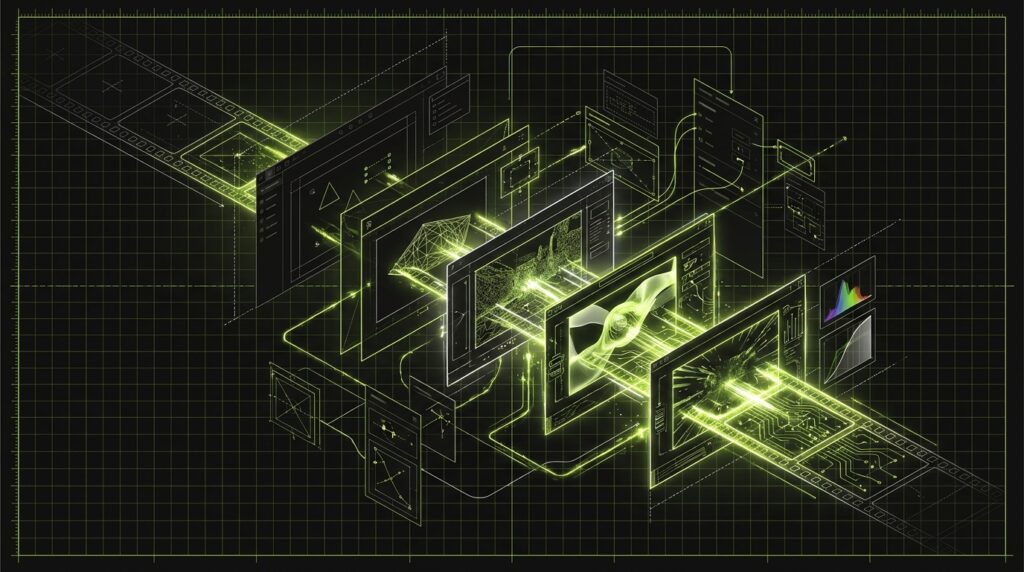
[Client Video Clip] ----> [Figma Weave Canvas] ----> [Edited Clip]
        ^                          |                        ^
        |                          |                        |
        +------- [Reference Image] + [Text Prompt] --------+
                          (Aleph 2.0)
Here’s exactly how I’d use this in a client project
I would use Runway Aleph 2.0 in Figma to accelerate client video revisions by bringing editing into the design phase. The process involves importing the client’s video clip, creating style frames or finding reference images for the desired changes, applying them with Aleph 2.0, and sharing the edited clip for approval—all within the same Figma file.
- Drop the video clip onto the Figma canvas. Any clip up to 30 seconds works. This could be raw footage from a shoot or an existing ad the client wants to refresh.
- Create your “correction” reference. This is the key designer-led step. Don’t just find a stock photo. Create a small style frame in Figma—a quick comp of the color grade, lighting, or background you want. This gives you precise control.
- Select the video and reference, then prompt Aleph 2.0. Use the prompt structure from above. Tell it exactly what to pull from your reference. Aleph 2.0 will generate a preview. This is a huge leap forward for anyone who follows my posts on industry intel, as it closes the gap between design and production.
- Iterate and export. The client can now comment directly on the video inside the Figma file they’re already in. No more exporting, uploading to Frame.io, and waiting for feedback. You make the change and they see it in seconds.
What this changes for designer-run agency work
This integration changes how agencies scope and price video work by collapsing the roles of designer, director, and editor. Post-production revisions that once required reshoots or complex VFX can now be handled by a designer in Figma, dramatically reducing turnaround times and costs for common client requests.
| Dimension | Old Way (Siloed) | New Way (Integrated) |
|---|---|---|
| Revision Workflow | Email chain → Video editor → Frame.io review | Live collaboration inside a Figma file. |
| Tooling | Figma + Adobe Premiere/After Effects + Frame.io | Figma. That’s it. |
| Scoping | Video edits billed as separate line item. | Included as part of the core design deliverable. |
| Turnaround Time | Days or weeks for simple revisions. | Minutes or hours. |
The biggest shift is economic. An agency can now sell “unlimited video style revisions” within a design sprint. The cost of a “what if we tried this…” idea drops to near zero. This changes how you build websites and the assets that go on them, a core principle of modern AEO (AI Engine Optimization).
My $0.02 — How I’d roll this out
I’d roll this out by starting with small, low-risk internal projects to master the workflow before offering it to clients. The goal is to build a portfolio of impressive before-and-after clips that sell the capability, then introduce it as a ‘rapid video revision’ service in new project scopes.
Day 1 — Master the tool. Take three existing video ads—your own or a client’s—and run them through Aleph 2.0. Try changing the time of day, swapping the background, and applying a completely different art style. Get a feel for what works and what doesn’t.
Day 2 — Build the one-slide case study. Create a simple “Before / After” GIF for your best result from Day 1. This is your sales asset. Drop it into your proposals and capabilities deck. The visual proof is more powerful than any explanation.
Day 3 — Update your service menu. Add a new line item to your proposals: “AI-Assisted Video Styling & Revision.” Price it as a flat-fee add-on to your existing design packages. It’s an easy upsell because it solves a problem every client with video has: expensive and slow post-production.
FAQ
What is Figma Weave?
Figma Weave is the environment inside Figma that allows for third-party tools and AI models, like Runway’s Aleph 2.0, to run directly on the design canvas. It turns Figma from a design tool into a broader creative platform.
Do I need a paid Runway account to use this?
The official announcements haven’t specified the exact pricing model yet. It’s likely that usage may be tied to either a Figma subscription tier or a Runway plan, but this is not yet confirmed. Always check the official Runway product page for current details.
What is the maximum video length I can edit?
You can edit video clips up to 30 seconds long per operation. For longer videos, you would need to break them down into 30-second segments, edit each one, and then stitch them together.
Can Aleph 2.0 change a person’s clothes or add a character?
Yes. By providing a reference image of the desired clothing style or the new character, you can direct the AI to make those changes. The keyframe-aware editing helps ensure these changes remain consistent as the person moves.
Is this better than using traditional video software like After Effects?
It’s different. After Effects offers granular, professional-grade control for VFX artists. Aleph 2.0 in Figma is for rapid, high-quality directional changes by designers. It’s better for speed and iteration, not for complex, keyframe-perfect compositing.
How much does the Aleph 2.0 integration cost?
Specific pricing for using Aleph 2.0 within Figma Weave has not been detailed in the initial launch information from Figma or Runway. It’s best to check their official sites for the most up-to-date pricing and plan requirements.
Does this work on any video?
Yes, it works on existing video footage that you upload. You are not limited to editing only AI-generated videos. This is a key feature for working with client-provided assets or raw footage from a shoot.
Want help applying this?
Four ways to go deeper:
- Build with Builders. Join the Talk-to-Build community to learn to build AI-native websites, cinematic AI video, and agent-driven workflows you can sell.
- 1-on-1 working session. Book a screen-share with me — bring a real problem, leave with a working piece of it.
- Done-for-you. MK-Way builds AEO-ready websites, apps, and AI agent workflows.
- Quick question. DM me on Instagram or LinkedIn. I read every message.
Part of the AI Pulse series. If you commented “RUNWAY” on one of my videos — this is the breakdown. Sources: Figma Blog, Runway.
Last updated: 2026-06-25.